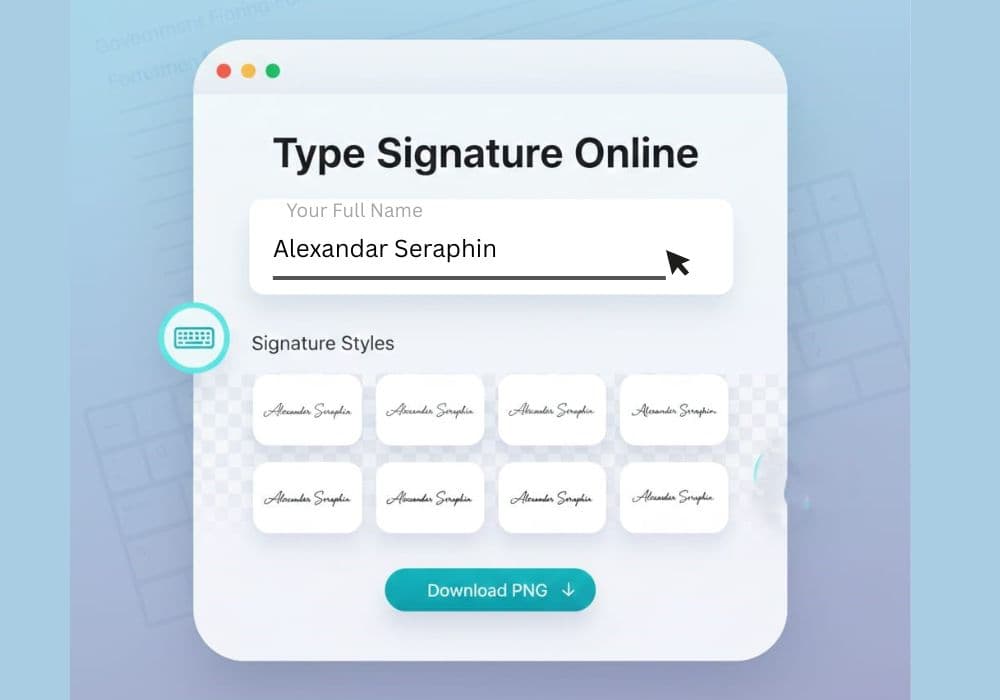
Type Signature — Pick Fonts & Export Clean PNGs
Short, practical advice to choose fonts and export typed signatures that remain legible and professional after upload.
Font selection
- Prefer script-like fonts with good legibility — avoid overly ornate styles.
- Preview each font at your target export size before choosing.
Size & spacing
- Use the size slider to match the portal’s visible signature area.
- Increase size or tracking slightly if strokes thin out after compression.
Color & export
- Black or dark blue is safest for visibility and acceptance.
- Export PNG (transparent) when possible; use white-background JPG only if required.
- If needed, use Signature Resizer to fine-tune crop, size or background color.
Verify
- Preview at 100% and in the portal preview to confirm clarity and placement.
- Test a few font choices (6–10) at the final size to find the best compromise between style and legibility.
Frequently Asked Questions
How many fonts should I try before choosing?
Try 6–10 fonts at your target export size to see which maintain detail after compression.
What color should I use for typed signatures?
Use black or dark blue for best contrast and acceptance. Avoid light colors for official forms.
Can I edit the typed signature after exporting?
Yes — reopen the tool, change font/size/color and re-export. Keep the source text for quick edits.